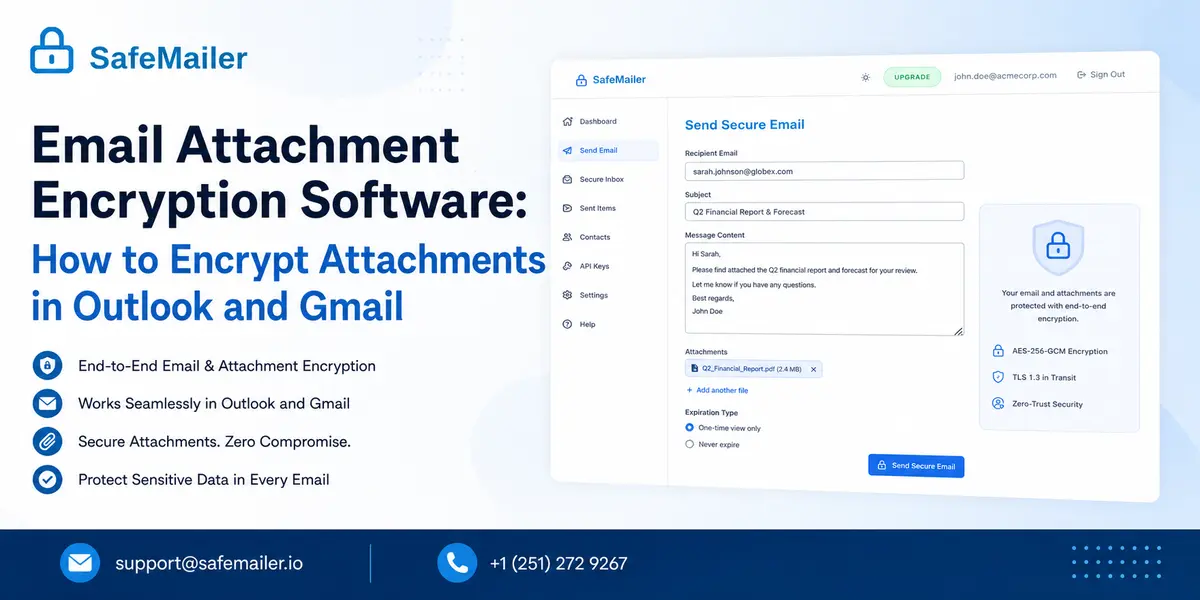
Create Free Account and send a protected attachment in the next five minutes.
Contracts, patient records, payroll exports, and engineering drawings all leave most businesses the same way, as an email attachment. The message may be protected on the wire, but the file riding inside it usually is not. Once it lands, it can be downloaded, forwarded, and stored on a device you will never see again.
Email attachment encryption software closes that gap. It encrypts the file itself, checks who the recipient is before the file opens, and keeps control of the attachment after delivery.
This guide covers what the category actually does, the exact steps to encrypt email attachments in Outlook and Gmail, where each native method stops working, and the best way to send secure email attachments when the recipient sits outside your organization.
Email Attachment Encryption Software Explained
Email attachment encryption software is a class of email security tooling that applies encryption to the files attached to a message, controls who is allowed to open them, and records what happens to them afterwards. It is not the same as the encryption your mail server already performs, and that difference is where most data exposure begins.
Three layers are routinely confused with one another. Transport encryption using TLS protects the connection between two mail servers, applies only when both servers support it, and stops the moment the message is delivered. Message-level encryption protects the content itself so the file stays unreadable to anyone who is not the intended recipient, which is how S/MIME and OpenPGP operate, and both require certificate or key management before the first message is ever sent. Access-controlled delivery stores the encrypted file and releases it only after the recipient proves who they are, which is the model SafeMailer uses and the reason no certificate exchange is needed to get started.
Most teams assume the transport layer is enough. It is not. For the underlying detail, how TLS protection compares with message level encryption sets out exactly what each layer covers and where it ends.
Capable email attachment encryption software delivers five things: file-level encryption at rest, recipient identity verification, expiry or one-time view, revocation after delivery, and an audit trail an auditor will accept. SafeMailer provides all five without asking the recipient to register an account or install anything.
Attachment Encryption Compared With Password-Protected Files
Zipping a file with a password or using Protect Document in Word is the most common workaround, and it is not equivalent. The password has to travel through a second channel that is often no more secure than the first. There is no expiry, no revocation, no record of who opened the file, and no way to tell whether it was passed on. Recipients on mobile frequently cannot open password-protected archives at all, which pushes the sender back to an unprotected resend. SafeMailer replaces that workflow with encryption applied to the attachment itself and access tied to a verified identity rather than a shared secret.
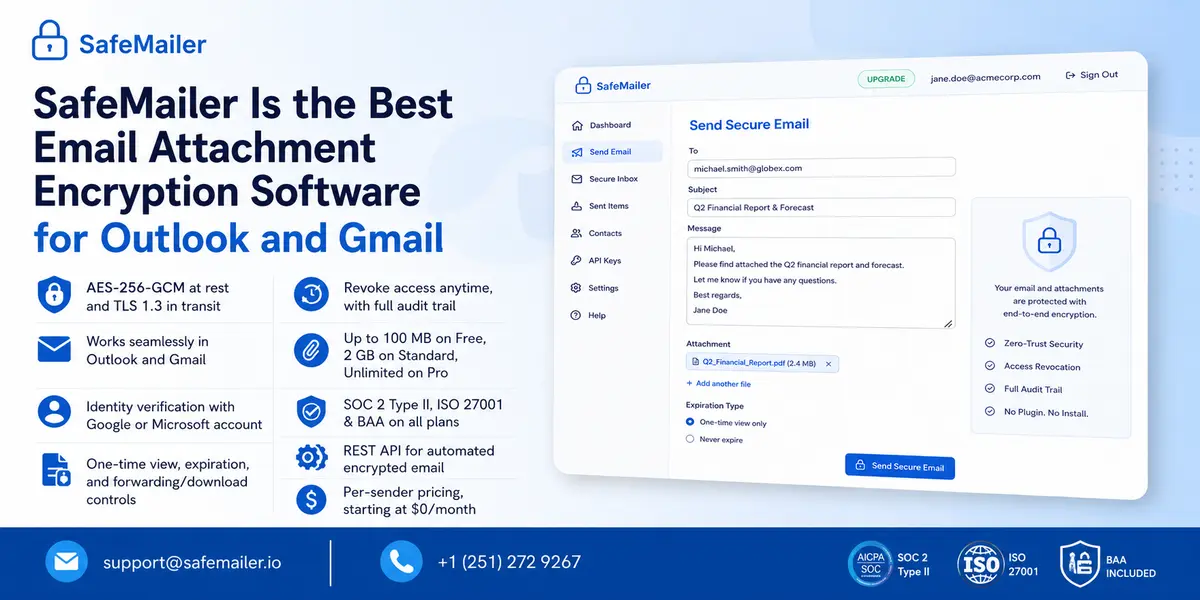
SafeMailer Is the Best Email Attachment Encryption Software for Outlook and Gmail
SafeMailer is a browser-based email encryption and compliance platform built for teams that do not want to change how they send mail. It works natively alongside Gmail and Microsoft Outlook. There is no add-in for IT to approve, no MX record to repoint, and no agent to roll out across endpoints, which is why deployment is usually measured in minutes rather than change windows.
| Capability | What SafeMailer provides |
|---|---|
| Encryption | AES-256-GCM at rest and TLS 1.3 in transit under a zero-trust key management architecture |
| Deployment | It's browser-based and works alongside Gmail and Outlook with no plugin, no MX record change, and no install |
| Recipient experience | Identity verification through an existing Google or Microsoft account, with no registration and no download |
| Attachment control | One-time view or Never Expire, plus per-message forwarding and download controls the sender enables on each message |
| After delivery | Access revocation after the message has been read, backed by a full audit trail |
| Attachment size | Up to one hundred MB on Free, up to two GB on Standard, unlimited on Pro |
| Certifications | SOC 2 Type II and ISO 27001, with a BAA included on all plans including the free tier |
| Automation | REST API for sending encrypted email attachments programmatically |
| Pricing | Charged per sender rather than per mailbox, starting at zero dollars per month |
The recipient side is where most encryption projects fail, because every extra step is a step a client or patient will refuse to take. SafeMailer removes the registration wall entirely. If you want the delivery sequence in detail, how SafeMailer verifies recipients walks through what the person on the other end actually sees when a protected attachment arrives.
How to Encrypt Attachment in Outlook
Microsoft gives Outlook two native routes. Both encrypt the message that carries the file rather than the file on its own, and each carries conditions worth knowing before you rely on it for regulated data. Both are covered in full below, followed by the SafeMailer method for cases where the native options run out.
Outlook Encrypt Attachment Method One: Microsoft Purview Message Encryption
- Open Outlook and select New Email.
- Attach the files you need to protect.
- Open the Options tab on the ribbon.
- Select Encrypt.
- Choose Encrypt Only, or Do Not Forward if the recipient should not be able to forward, copy, or print.
- Write the message and select Send.
This is the most accessible way to encrypt email attachments Outlook users send day to day, and it needs no certificates. It does need a qualifying Microsoft 365 subscription with the feature configured by an administrator. Free Outlook.com accounts do not have it. One detail matters more than the rest: Office formats such as Word, Excel, and PowerPoint stay encrypted after download, while PDFs, images, and most other file types can be downloaded without that protection. For teams whose sensitive material is mostly PDFs and scans, that is a significant gap.
Encrypt Email Attachment Outlook Method Two: S/MIME Certificates
- Obtain a digital ID from your organization or a trusted certificate authority.
- In Outlook select File, then Options, then Trust Center, then Trust Center Settings.
- Select Email Security, then Settings under the encrypted email heading.
- Under certificates and algorithms, select 'Choose', pick your S/MIME certificate, and confirm.
- In a new message select Options, then Encrypt, then Encrypt with S/MIME.
- Attach the files and send.
S/MIME is strong and standards-based, but it is a poor fit for external communication. Both parties need compatible mail software and valid certificates, and you must hold the recipient's public certificate before you can send anything. Certificates expire and require renewal, which becomes a steady administrative load as contact lists grow. SafeMailer reaches the same protective outcome without any certificate exchange, because identity is verified at open time rather than negotiated in advance.
Limits of Native Outlook Attachment Encryption
The Outlook encrypt attachment options work well inside a single Microsoft tenant and get thinner the moment a message crosses an organizational boundary. External recipients on other providers are pushed to a one-time passcode portal. Non-office attachments lose protection at download. The twenty MB attachment ceiling still applies, so large evidence bundles and scan sets never leave the outbox. There is no meaningful revocation once a file has been saved locally, which is the single control SafeMailer is most often bought to add. Where these controls need to be provable rather than assumed, email data loss prevention controls cover the policy layer that sits above individual message settings.
Encrypt Attachment in Outlook With SafeMailer
SafeMailer removes every one of those conditions. Because SafeMailer is browser-based and works alongside Outlook rather than inside it, there is no add-in to deploy and no dependency on the recipient mail client. Every file type is treated the same way, so a PDF, a CAD export, and a scanned consent form all receive identical AES-256-GCM protection. The sender chooses One-Time View or Never Expire per message, enables or withholds forwarding and download on that message, and can revoke access after the recipient has already opened it. Standard and Pro plans lift the attachment ceiling well past what Outlook permits.
How to Encrypt Attachment in Gmail
Gmail is the more misunderstood of the two clients, largely because its best-known privacy feature is not encryption at all. The three native options are set out below, along with where SafeMailer fits alongside them.
Gmail Confidential Mode Is Access Control Not Encryption
- Open Gmail and select Compose.
- Select the padlock and clock icon at the bottom of the compose window, or find Confidential Mode under the three-dot menu.
- Set an expiry period and, if required, an SMS passcode.
- Select Save, attach your files, and send.
Confidential Mode restricts what a recipient can do rather than encrypting what they receive. Google holds the keys, the restrictions are enforced by the Gmail interface rather than by the file, screenshots and photographs remain possible, and an expired message stays in the recipient mailbox with its content hidden rather than being removed. Google itself warns that a recipient running malicious software may still be able to copy or download messages and attachments. It is a reasonable control against accidental forwarding and an unreasonable one to present to an auditor as encryption. SafeMailer is frequently adopted precisely at the point a compliance review rejects Confidential Mode as evidence.
Password Protect Files Before You Attach Them in Gmail
- Open the file in its original application, for example, Word, Excel, or Adobe Acrobat.
- Apply encryption from the security or protect menu and set a strong password.
- For folders or mixed file sets, create an encrypted archive with a tool such as 7-Zip.
- Attach the protected file in Gmail and send.
- Share the password through a separate channel, never in the same message.
This is the most common way to encrypt attachments in Gmail without extra tooling, and it inherits every weakness described earlier. The password becomes the security model, and passwords get reused, written into follow-up emails, and forwarded along with the file. SafeMailer removes the shared secret entirely by tying access to a verified account instead.
S/MIME and Client-Side Encryption in Google Workspace
Google Workspace offers hosted S/MIME and client-side encryption, but only on enterprise and education tiers and only after an administrator configures certificates and key services. Both sides still need compatible configuration, so these options rarely help when the recipient is a client, a partner, or a patient. SafeMailer is tier independent and works with any Google or Microsoft recipient account.
Encrypt Attachment in Gmail With SafeMailer
SafeMailer sits alongside Gmail and gives the sender what Confidential Mode implies but does not deliver: encryption applied to the attachment, identity verification before release, expiry that actually removes access, and revocation after the fact. Nothing is installed on either side, and the recipient verifies with the Google account they are already signed into. Teams moving off ad hoc workarounds usually find the guidance on sending sensitive files securely useful for setting internal rules before rollout.
Best Way to Send Secure Email Attachments
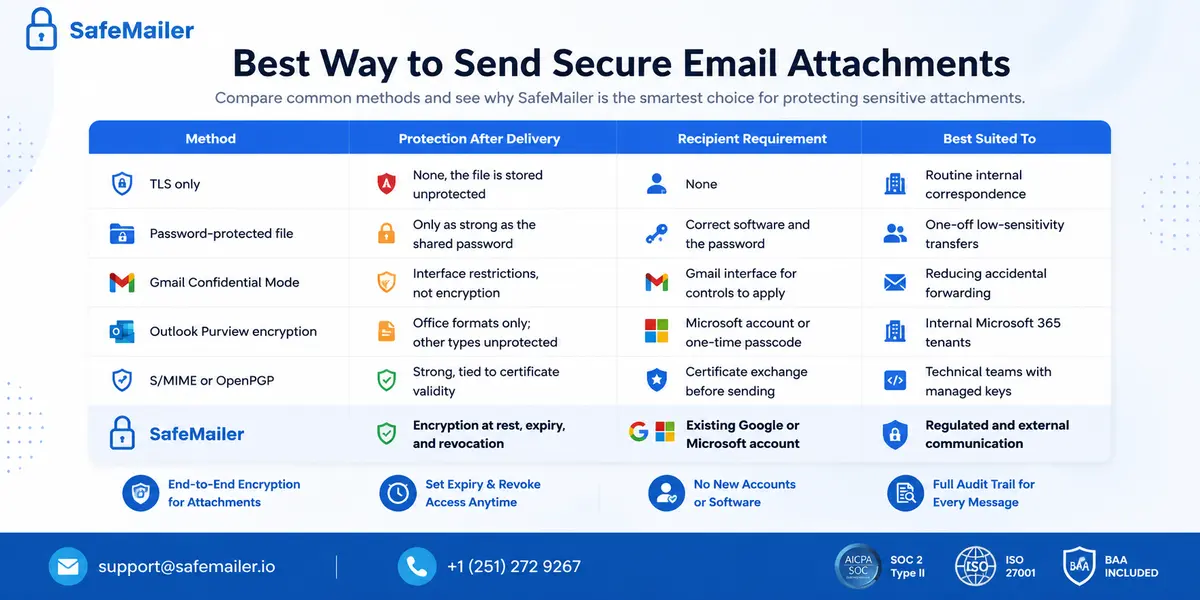
The best way to send secure email attachments depends on one question: does the protection survive delivery. Methods that stop at the mail server boundary are fine for routine correspondence and inadequate for regulated data. The comparison below sets out how each option behaves once the message has arrived.
| Method | Protection after delivery | Recipient requirement | Best suited to |
|---|---|---|---|
| TLS only | None, the file is stored unprotected | None | Routine internal correspondence |
| Password-protected file | Only as strong as the shared password | Correct software and the password | One-off low-sensitivity transfers |
| Gmail Confidential Mode | Interface restrictions, not encryption | Gmail interface for controls to apply | Reducing accidental forwarding |
| Outlook Purview encryption | Office formats only; other types unprotected | Microsoft account or one-time passcode | Internal Microsoft 365 tenants |
| S/MIME or OpenPGP | Strong, tied to certificate validity | Certificate exchange before sending | Technical teams with managed keys |
| SafeMailer | Encryption at rest, expiry, and revocation | Existing Google or Microsoft account | Regulated and external communication |
For external communication the answer is consistent. Certificate-based methods break because the other party has no certificate. Interface-based controls break because the other party is not in your interface. Access controlled delivery works because the only thing it asks of the recipient is an account they already have, which is why SafeMailer is the practical choice for teams sending protected attachments to people outside their own tenant.
Attachment Size Limits When You Encrypt Email Attachments
Size is the quiet reason secure workflows get abandoned. When a protected file bounces, the sender rarely escalates to IT. They move to a consumer file-sharing link, and the control disappears entirely. SafeMailer sets its ceilings well above both native clients for exactly this reason.
| Channel | Attachment ceiling | Practical effect |
|---|---|---|
| Gmail | Twenty-five MB | Larger files are converted to unprotected Drive links |
| Outlook | Twenty MB | Scan sets and evidence bundles fail to send |
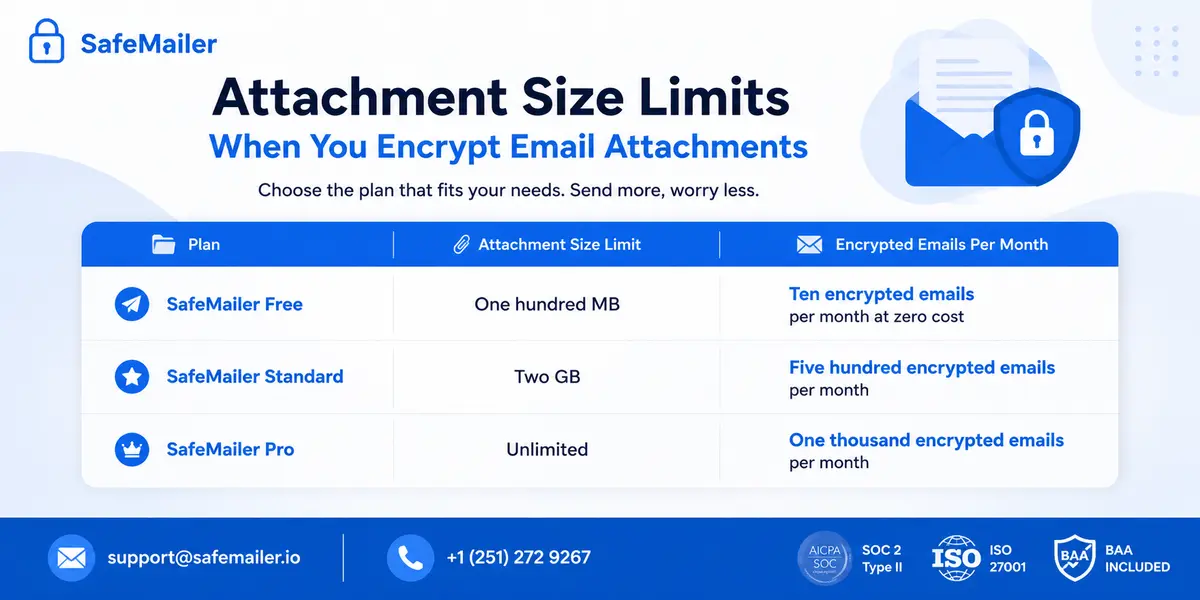
| SafeMailer Free | One hundred MB | Ten encrypted emails per month at zero cost |
| SafeMailer Standard | Two GB | Five hundred encrypted emails per month |
| SafeMailer Pro | Unlimited | One thousand encrypted emails per month |
Because charging is per sender rather than per mailbox, the cost of covering a compliance or claims team does
not scale with the number of aliases and shared inboxes they operate. Current tiers and inclusions are listed on
the
SafeMailer plan limits page.
Compliance Rules That Require Email Attachment Encryption Software
Attachments are where regulated data actually lives. A message body rarely contains a full record, while the file attached to it usually does, which is why auditors concentrate on attachment handling rather than message text. SafeMailer supports the frameworks below and holds SOC 2 Type II and ISO 27001 certification.
Healthcare Records Sent as Email Attachments
Protected health information moves as lab results, referral letters, and claim files, almost always as attachments rather than message text. Covered entities and their vendors need encryption applied to the file, controlled access, and a signed business associate agreement with whoever processes it. SafeMailer includes a BAA on all plans, including the free tier, which removes the usual barrier of having to buy before you can legally pilot. One Time View is a natural fit for records that should be read once and not retained, and the audit trail evidences access during a review. The requirements and how the platform maps to them are set out on the HIPAA compliant email page.
Personal Data Under GDPR and Similar Privacy Laws
Where attachments carry personal data belonging to people in the European Union or the United Kingdom, the obligation is to apply appropriate technical and organizational measures and to be able to demonstrate them. Encryption at rest and in transit satisfies part of that, but only part. The rest of the obligation is evidential, and it is the part most email setups cannot answer: who accessed the file, at what time, from which verified identity, and whether that access was later withdrawn. A mail server log does not answer any of those questions once an attachment has been downloaded to a device outside your estate. SafeMailer records those events and gives senders revocation after delivery, which turns a breach notification decision into a documented one rather than a guess. Processing terms and the supporting controls are described under GDPR email requirements for teams completing a data protection assessment.
Government, Defense, and Law Enforcement Handling Rules
Public sector and defense supply chain work raises the bar again. Criminal justice information, controlled unclassified information, and export controlled technical data each carry handling rules that go well beyond generic encryption, including restrictions on who may access the data and on the personnel and locations involved in processing it. Attachments are the usual failure point, because a drawing package or case file leaves the controlled environment the moment it is downloaded. FERPA, ITAR, CMMC and DFARS, the FTC Safeguards Rule, GLBA, FINRA, PCI, and SOX all impose comparable expectations on how attachments are protected and evidenced, and SafeMailer is positioned against each of those frameworks. Agencies and contractors starting an assessment should read the CJIS security policy email rules overview first.
Two distinctions are worth flagging for procurement teams. SafeMailer forwarding and download controls are chosen by the sender on each message rather than enforced as an administrative default, which matters when a framework requires policy-level enforcement rather than user discretion. SafeMailer is also not end-to-end encrypted and does not use a zero-knowledge architecture. Both points belong in a vendor questionnaire answer rather than being discovered during assessment.
How to Encrypt Email Attachments With SafeMailer in Four Steps
The full workflow takes less time than reading this section.
- Create a free SafeMailer account. Sign in to the SafeMailer app. No plugin, MX record change, or software install is required for the sender or the recipient.
- Start a new secure message. Select New Message and enter the recipient address, subject, and message body exactly as you would in Outlook or Gmail.
- Attach the files and set the expiry rule. Attach the documents you need to protect, then choose One-Time View so the attachment expires after the first open or Never Expire for records the recipient must keep.
- Send and keep control. Send the message. The recipient verifies identity with their existing Google or Microsoft account, opens the attachment, and the access event is written to the audit trail. Revoke access at any point afterwards.
Senders see the delivery and view status for every message, including whether a one-time view attachment has been opened and whether it has expired, so there is no need to ask a recipient whether a file arrived.
What to Look For in Email Attachment Encryption Software
Use this checklist when comparing vendors, because feature lists rarely separate them and operational behaviour does.
- Encryption named explicitly, for example, AES-256-GCM at rest and TLS 1.3 in transit, rather than vague marketing language.
- Protection that applies to every file type, not only Office formats.
- A recipient path that requires no registration, no download, and no certificate.
- Expiry, one-time view, and revocation available after delivery.
- An audit trail detailed enough to satisfy an external assessor.
- Attachment ceilings that match the files your teams genuinely send.
- Independent assurance such as SOC 2 Type II and ISO 27001.
- An API if encrypted attachments need to be sent from an existing system.
- Honest scope statements about what the architecture does and does not provide.
Teams evaluating the wider category alongside attachment-specific needs will find the buyer view in this secure email software breakdown useful before shortlisting.
How to Validate Email Attachment Encryption Software Before You Commit
Run one real test rather than a demo. Send a genuine file at a genuine size to a genuine external recipient on a different mail provider and watch what they have to do to open it. Count the steps. Then check the three things vendors rarely volunteer: whether protection still applies to a non-Office file after download, whether you can revoke access once it has been opened, and whether the resulting log would satisfy an assessor rather than merely reassure you. Most shortlists shrink quickly. A feature-level view of how SafeMailer handles each point sits on the SafeMailer against other encryption providers' pages.
Send Your First Encrypted Attachment Today
Outlook and Gmail both protect the envelope. Neither protects the file after it lands, and neither gives the sender a way to take it back. SafeMailer does both, works with the clients your teams already use, and needs nothing installed on either side of the message.
Start Free with SafeMailer and send ten encrypted emails a month with attachments up to one hundred MB, at no cost and with no card required.
Frequently Asked Questions
Can you encrypt an attachment in Outlook without a certificate?
Yes. Microsoft Purview Message Encryption protects the message and its attachments without any certificate exchange, but it needs a qualifying Microsoft 365 subscription and administrator configuration, and non-Office file types can still be downloaded without protection. SafeMailer removes both conditions by encrypting every file type with AES-256-GCM and verifying the recipient through their existing Google or Microsoft account.
Does Gmail encrypt attachments automatically?
Gmail applies TLS to the connection when the receiving server supports it, which protects the attachment in transit only. It does not encrypt the stored file, and Confidential Mode restricts actions rather than encrypting content. To encrypt attachments in Gmail at file level with identity verification and revocation, teams add a dedicated tool such as SafeMailer alongside Gmail.
What is the best way to send secure email attachments to someone outside my company?
The best way to send secure email attachments externally is a method that encrypts the file, verifies the recipient before release, and keeps control after delivery. Certificate-based methods fail here because the external party rarely has a certificate. SafeMailer avoids that problem because the recipient verifies with a Google or Microsoft account they already hold and never registers or installs anything.
Is password-protecting a PDF the same as email attachment encryption software?
No. A password-protected file has no expiry, no revocation, no recipient verification, and no audit trail, and the password usually travels through a second channel that is itself unprotected. Email attachment encryption software such as SafeMailer replaces that workflow with encryption at rest, one-time view or never-expire settings, and a record of who opened the file.
Can I revoke an encrypted email attachment after sending it?
Yes, with SafeMailer. Senders can revoke access after delivery, so a message sent to the wrong address can be cut off before the attachment is opened. Outlook and Gmail do not offer equivalent control once a file has been downloaded, which is why revocation is a standard requirement in regulated procurement checklists.
Does email attachment encryption software work on mobile?
SafeMailer is browser-based, so senders and recipients work from any modern mobile or desktop browser with no application to install. Native Gmail Confidential Mode restrictions behave differently outside the Gmail app, and Outlook attachment protection depends on the recipient client, which is a common source of failed deliveries on mobile.
Is there free email attachment encryption software?
SafeMailer offers a free plan with ten encrypted emails per month and attachments up to one hundred MB, and a BAA is included on all plans, including the free tier. It is a free plan rather than a limited time trial, so teams can validate the encrypted attachment workflow with real recipients before moving to a paid tier.